


Today’s kids can install an app before they can tie their shoes, yet most of them have no idea what happens inside the box under the desk. The good news: understanding a computer doesn’t start with a screwdriver. It starts with curiosity, a few simple ideas, and the right kind of play.
Why it matters
We teach children how plants grow and how the heart pumps blood. Computers shape almost every part of their day, but for most kids they remain a magic black box. Knowing what is inside changes that. A child who understands that memory, storage and the processor do different jobs makes better choices, asks better questions and is far less intimidated when something stops working.
It is also a natural first step towards coding. Programs make much more sense once you know where they run and what they use.
Start with an analogy kids already know
The classic trick works best: compare the computer to something familiar. A kitchen is a great one.
- CPU (processor) – the chef. It does the actual work, one step after another, very fast.
- RAM (memory) – the kitchen counter. Everything the chef is working on right now lies here. A bigger counter means more things at once, but it is cleared when the kitchen closes (when the computer turns off).
- SSD or hard drive (storage) – the pantry. Recipes and ingredients are kept here for later, even when the lights are off.
- Graphics card (GPU) – a pastry chef who only decorates, but does it extremely fast. It draws everything you see on the screen.
- Power supply – the electricity and gas for the whole kitchen. Too weak, and nothing works properly.
- Cooler and fans – the extractor hood. Without it the kitchen overheats and has to shut down.
- Motherboard – the kitchen itself: the walls, worktops and wiring that connect everything.
Ask your child which “kitchen worker” matters most for a video game, and which one for storing thousands of photos. Those small questions turn vocabulary into understanding.
Let them build one, safely
The best moment of learning comes when kids put the pieces together themselves. Opening a real PC is fun, but it is not always practical: parts are expensive, static electricity can damage components, and an old family computer is rarely available for experiments.
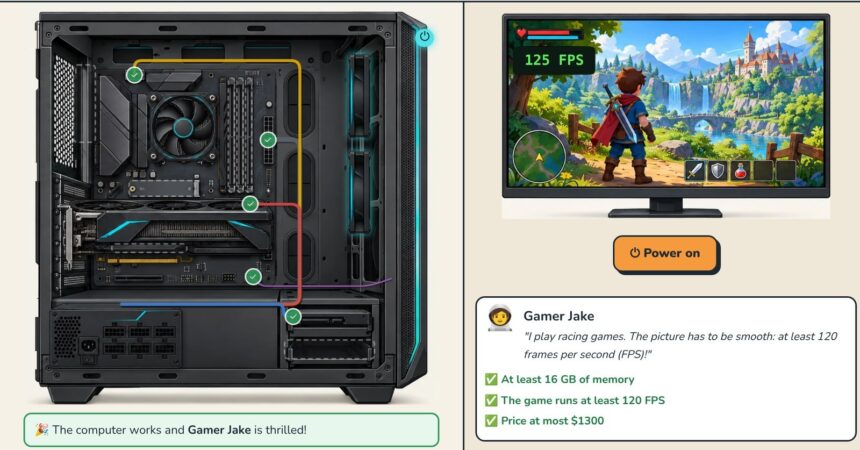
This is where educational games help. In Build a PC, a free-to-try game on HexoQuest, kids open a virtual case, undo the screws, install each part in the right slot and plug in the cables. Then comes the big moment: they press Power on and see whether their computer starts.
A finished build in Build a PC: every part installed, every cable connected, and the customer’s game running at 125 FPS.
What makes it more than a puzzle is that every computer is built for someone. A grandmother needs a simple machine for video calls within a small budget. An accountant needs a fast office computer. A gamer wants smooth graphics. Kids quickly discover that the “best” computer is the one that fits the person, and that spending money on a graphics card makes no sense for Grandma.
Turn mistakes into detective work
Real computers don’t always work the first time, and that is a lesson worth learning. Many PCs report problems with short beep sounds when they start. In the game, a missing memory module, a loose cable or an overheating processor produce the same kind of clues, and kids have to listen, think and fix one problem at a time.
This is the heart of troubleshooting: observe, make a guess, test it, repeat. It is the same way of thinking programmers use to fix bugs, and it builds patience and confidence at the same time.
Five ideas to try at home or in class
- Name the parts. If you have an old computer or a picture of one, play “point and name” with the kitchen analogy.
- Budget challenge. Give kids an imaginary budget and a customer, and let them choose parts from an online shop. Compare the results together.
- Why is it slow? Next time a device lags, ask your child to guess: is the counter (RAM) full, or is the pantry (storage) almost out of space?
- Build, then break. In a virtual builder, remove one part on purpose and see what happens when you power on.
- Connect it to coding. Once kids know the CPU follows instructions step by step, writing their first program feels like giving orders to the chef.
From curious user to confident creator
Kids don’t need to become computer technicians. But a child who has built a computer, even a virtual one, looks at technology differently. The box under the desk stops being magic and becomes something they understand, can fix, and one day might create.
If you would like to try it, the first levels of Build a PC are free to play in the browser, without installing anything. HexoQuest also has courses on coding, online safety and how the internet works, built as games for kids aged roughly 8 to 14.